On-device models — run fully offline
Shipped
View as MarkdownAlongside the remote and local-server providers, Bring Your LM has a built-in llama.cpp inference engine. Point it at a folder of GGUF model files you supply and it runs them in-process, on the device, with nothing leaving it — no server to stand up, no URL, no API key.
Why it matters
It's the most private and the most self-contained way to run a model: fully offline, on hardware you already carry. You still bring the model — a GGUF file you downloaded or converted — but there's no service in the loop.
How it works
Add an On-device (llama.cpp) provider and give it a models directory. On desktop that's a path you type; on Android you grant a folder once and the app reads it through the system file-access framework. The directory is scanned recursively and each model file becomes selectable.
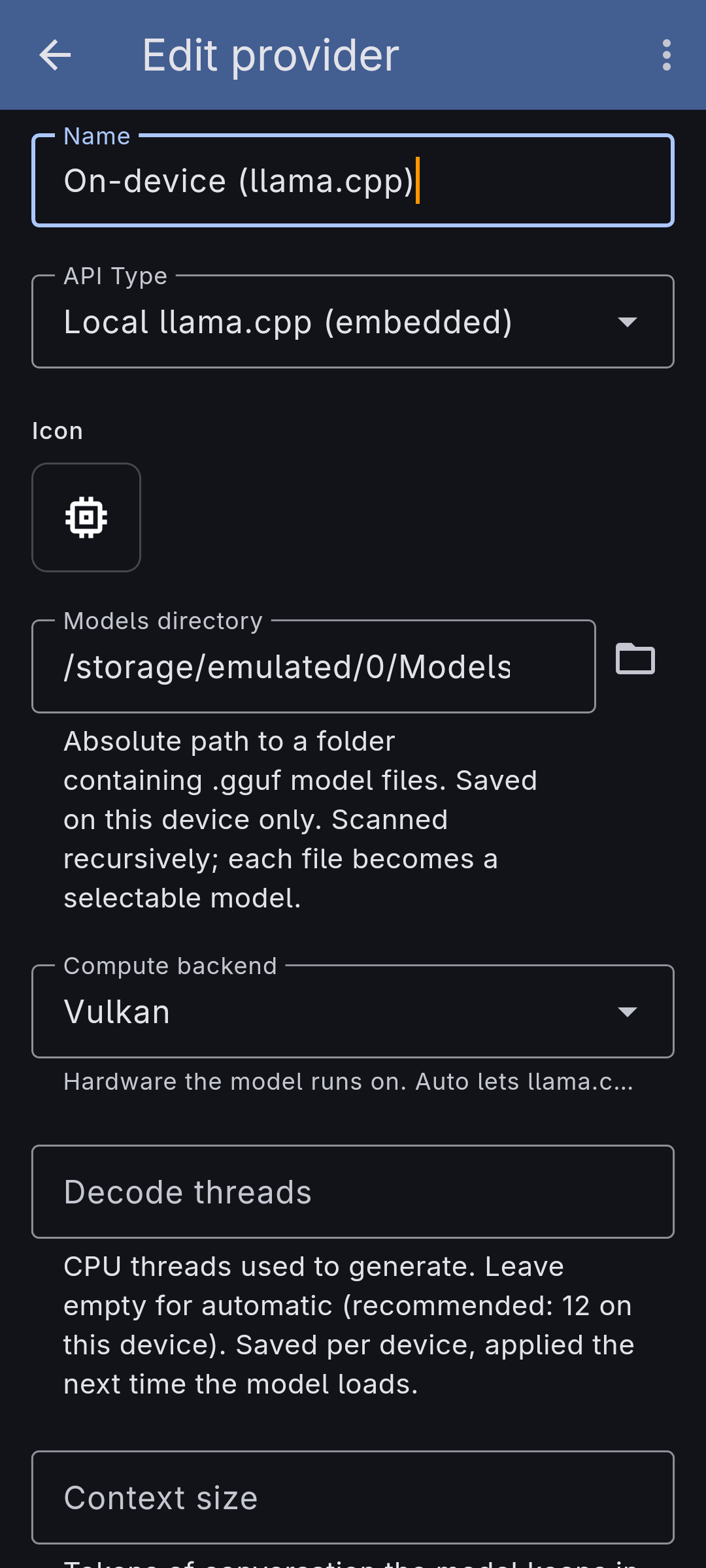
You assemble each model in the app rather than hand-editing anything. A model is built from:
- a base GGUF (the model itself),
- an optional multimodal projector (an mmproj file) that gives a vision-capable model the ability to actually read attached images, and
- an optional speculative-decoding draft for faster generation on supported models.
The file picker only offers files that fit each slot and shows each file's size, so you don't pick a projector where a base model belongs. A model's name is derived from its components (with markers like "+ vision"), and you can override it.
Pick the compute backend per device — Auto lets llama.cpp choose, or pin CPU, Vulkan, or (on Linux) ROCm for an AMD GPU. This choice is saved on the device only, since the right hardware for a phone means nothing on a desktop. You can also set the number of decode threads (or leave it automatic, with a recommended value shown). Each reply's metrics show which backend it actually ran on.
Each model's settings belong to the model
How a model is loaded — the context size, the KV cache types, and the draft head it speculates with here — is set on the model itself, not on an agent. Every agent that uses that model loads it the same way, and two quantizations of the same weights are two models with their own settings.
Reach them by opening a model's row in the provider's model list — Model settings sits under the weights and projector slots, so it opens the settings of the pairing those slots are set to — or from the tune icon beside an agent's bound model, or from a reply's metrics. Opening the settings of a pairing is what sets it up, so it appears under Assembled models on the provider page afterwards.
Context size and cache types carry a scope: All devices stores what the model is meant to run at and travels with it, while Only this one is this machine's veto — the cap a phone needs without retuning the desktop. A value neither layer has set is saved for this device; sharing it is one tap. The draft head has no shared option at all, because whether it speeds a model up or slows it down depends on the hardware in front of you.
What it doesn't do yet
- Speculative decoding is experimental. The draft-model slot and its controls are in the form, but the speed-up currently applies only to text turns on specific paired models — a turn with an attached image runs without it — and depends on runtime pieces that aren't fully in place yet.
- ROCm is Linux-only. On Android the offered backends are CPU and Vulkan. On Linux it takes the
ROCm download and AMD's ROCm runtime installed on the machine; the plain download
runs on Vulkan or the CPU. The download entry lists the AMD architectures (
gfx…) its ROCm backend was compiled for. - You still supply the model file. Nothing is bundled or downloaded for you; the provider only runs GGUF files already in the folder you grant it.